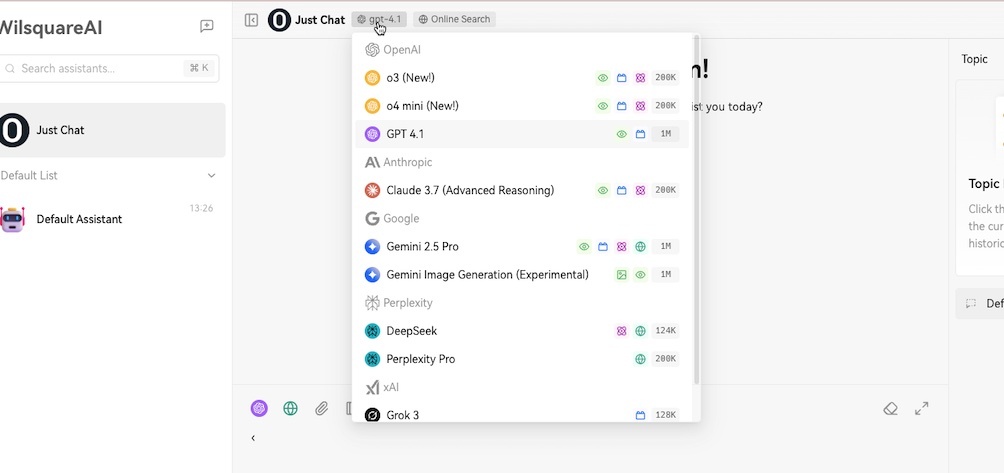
Basic Chat and Choosing a Model
Welcome to WilsquareAI. This guide will show you how to chat with the AI and how to pick the best model for your tasks.
Start a Chat
- Find the chat box at the bottom of your screen.
- Type your question or prompt.
- Press Enter or click Send.
WilsquareAI will respond using the model you picked.
Work with the AI's Answer
Move your mouse over the AI’s response to see these options:
-
Copy Copies the full reply to your clipboard so you can paste it into emails, notes, or documents.
-
Edit Lets you change or fix the text before you use it.
-
Subtopic Starts a separate thread related to that answer. This keeps your main chat clean. For example, if the AI mentions a company during a market discussion, you can start a subtopic that focuses only on that company.
-
Read Aloud Plays an audio version of the reply if you prefer listening instead of reading.
Choosing an AI Model
WilsquareAI has several models, each with different training and strengths. We often update them, so you may notice new features or improvements over time.
The Models We Offer
-
o3 Good for coding, writing scripts, and debugging.
-
gpt-4o Focused on marketing text, creative writing, and brainstorming content.
-
Claude 3.7 Helpful for coding, thorough logic, and step-by-step reasoning.
-
Gemini Suited for larger documents and big data analysis.
Why They Differ
Each model has its own strengths because they were trained on different data sets. Some handle longer text, some are faster for shorter prompts, and some can draw on current data from the web.
When to Switch
- You have a very large document: Use Gemini. It has more memory for detailed analysis.
- You need marketing or creative writing: Use gpt-4o.
- You want help with coding or logic: Use o3 or Claude 3.7.
- You are working on big data: Use Gemini again.
- You want a different angle or more details: Try another model to see if it fits better.
Switching Models
You can switch models at any time. If you need more detail or a different focus, try a new model.
Top Bar
- Find the current model name at the top of the screen.
- Click the name to open a list of models.
- Select the one you want.
LLM Icon
- Look for the purple LLM icon above the context window on the left side.
- Click it to open the model menu.
- Choose your model from the menu.
Here is a preview of the panel where you can switch models: