Getting Started
This section of the docs will help you log in to WILsquareAI, change your password, and understand the main screen. We will talk about other features in different guides.
Log In
- Check your email for a message with your WILsquareAI username and password.
- Open the WILsquareAI app in your browser.
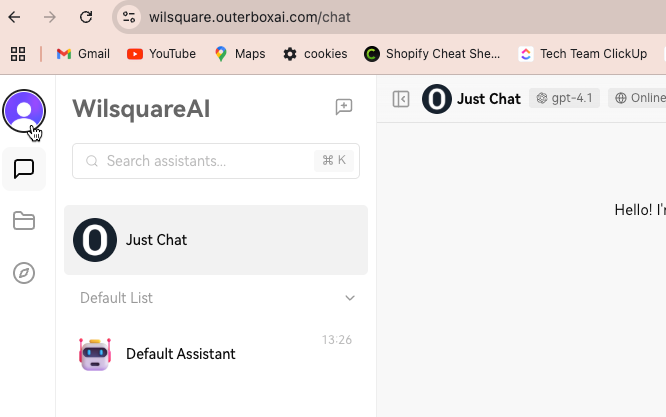
- Look for the account icon in the top left corner.
- Select the icon to open the sign-in panel.
- Enter the email and password from your welcome email.
Change Your Password
It’s best to create your own password right away:
- Click the account icon again.
- Pick "Account" from the menu.
- Choose the password option.
- Type your current password.
- Type your new password twice to confirm.
- Click "Save."

Main Screen
After you sign in, you will see:
- Chat area in the center for asking questions and reading answers.
- Model name at the top, showing which AI model is active.
- LLM icon above the context window on the left, where you can pick a different AI model.
- Sidebar menu on the left with tools and settings.